Accudemia: How do I create tutor Bios using the Name Badge?
Introduction
In Accudemia, administrators can write Bios for the institution's tutors. These Tutor Bios are typically used to advertise their expertise, skills, which courses they help with, etc. This article will explain how to reach the Bio section of a tutor's profile, and how students will access these Bios.
Step-By-Step
Creating the Tutor Bio on their Name Badge:
1. Navigate to Administration > User Management > Users section from the main menu.
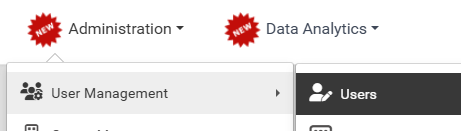
2. Use the search tool to find the tutor, then click on their name.
3. Click on the "Name Badge" tab and begin writing the tutor's Bio.

Note: You need to complete the "Public notes" (a.k.a. "Tutor Bio") and also enable or check the " Public Card Status " to show this information to other users throughout Accudemia.
How students see Bio information:
When students create appointments, in the last step, when they're choosing their tutor, those with Bios will have a Name Badge button beside their name.
Clicking the Name Badge button will reveal the Tutor Bio for the student to read.
Related Articles
Accudemia: How do I create surveys?
Introduction Administrators can create surveys in Accudemia to take feedback from both students and staff about Centers, services, tutors, or subject areas. This article will explain how to create a survey. Step-By-Step 1. Navigate to Administration ...Accudemia: How do I remove a Tutor that no longer works for me in my Center?
For the Updated Version of Accudemia 7.0 Click the following link: https://desk.zoho.com/portal/engineerica/kb/articles/accudemia-7-0-how-do-i-remove-a-tutor-that-no-longer-works-for-me-in-my-center NOTE: If the adviser/tutor already has a ...Accudemia: How do I add an Appointment after it already has happened? Or clear a No-show?
For the Updated Version of Accudemia 7.0 Click the link below: https://desk.zoho.com/portal/engineerica/kb/articles/accudemia-7-0-how-do-i-add-an-appointment-after-it-already-has-happened-or-clear-a-no-show Yes, you can manually add a "Session log" ...Accudemia: How do I show my tutors names for appointments when students try to schedule?
Intro For Appointments to work in Accudemia, you have to have quite a bit of information set up and in place. These are the steps to setting up Appointments in Accudemia. I also go back to using these steps when troubleshooting. I will run through ...Accudemia: How do I link students to a specific tutor using ADX?
Introduction In Accudemia, administrators can link tutors and students together in a Center. Once linked, students can only create appointments with the tutor they were assigned to in that Center. This can either be done through Accudemia by ...