Accudemia: How do I sign-in students in bulk for the same activity (class) in the Session Logs?
Introduction
This article will explain how to sign in students to the Center in bulk from the same class.
Step-by-Step
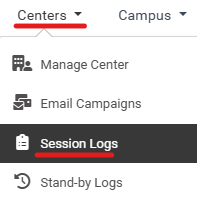
1. From the main menu, navigate to Centers > Session Logs section.
2. Click the +New Log button in the top-right.
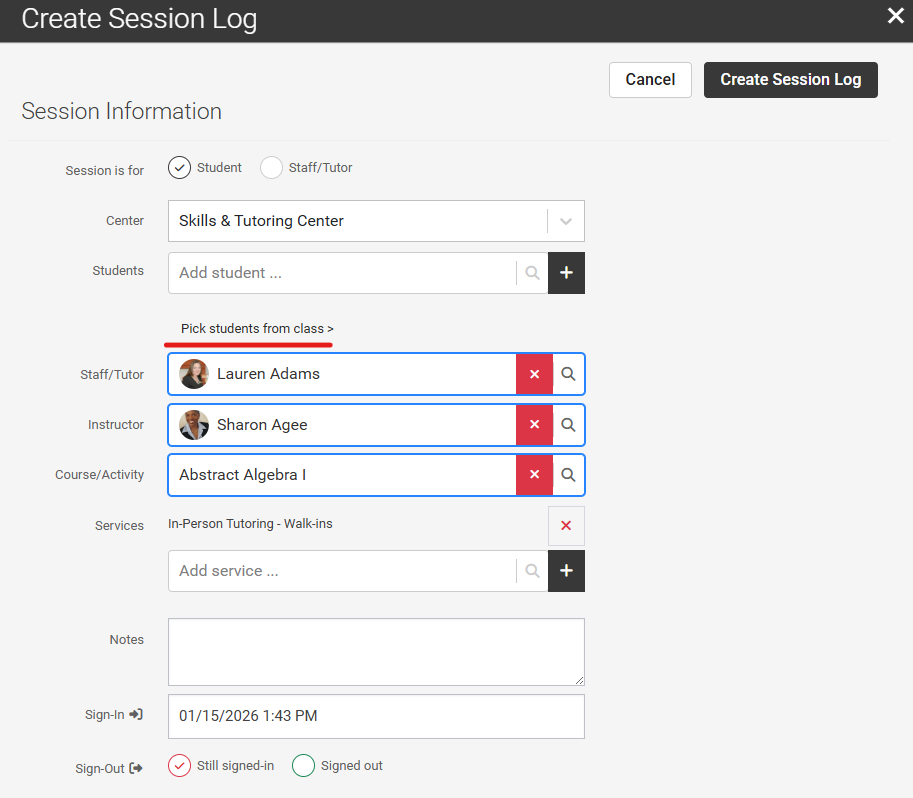
3. Complete the information on the session log, but when selecting the student, click the "Pick students from Class" option:
4. From there, select a class, and in the list of student you can select all or click the green + symbol just some of them to sign in.
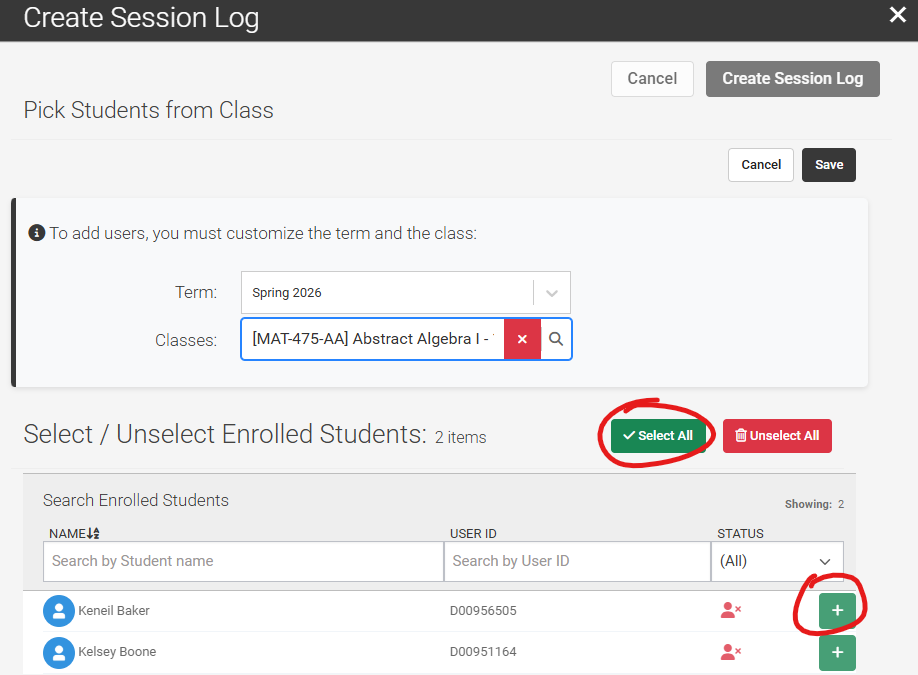
5. Accept the pop-up and click Save to return with those selected for the Session Logs to be created.
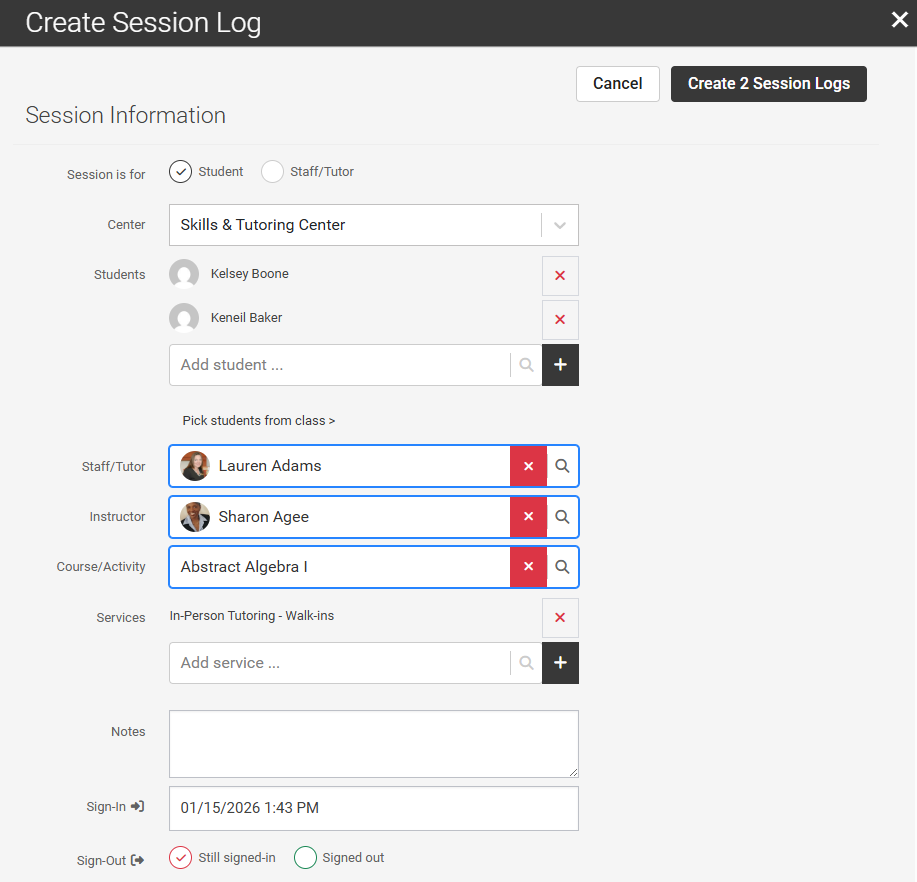
6. Finally, click the Create X Session Logs button on the top-right to complete the process.
Conclusion
After completing these steps, you should have sign-in a class at the Center.

Note: For more information on how to allow tutors access to do this, click here.